

Magicly Recall That Email You Sent By Mistake
Have you ever sent an email to the wrong person or clicked “Send” too quickly by mistake? Don’t worry, this happens to many people, with the unlucky ones sending sensitive data to the wrong recipient. There’s an easy way to avoid this problem by turning on the “Undo Send” feature in your email. This helpful tool gives you a few seconds to cancel the email before it’s delivered. Here’s how to turn it on or off in Gmail and Outlook. Welcome to a world where you can recall email!
Recall Email For Gmail Users

- Open Gmail Settings
- Click on the gear icon in the top right corner of your Gmail inbox.
- Choose “See all settings” from the dropdown menu.
- Enable Undo Send
- In the “General” tab, find the “Undo Send” section.
- Use the dropdown menu to choose how long you want to be able to cancel your email (5, 10, 20, or 30 seconds). This is the time you have to undo the send after you click “Send.”
- Save Changes
- Scroll down to the bottom of the settings page and click “Save Changes.”
Recall Email For Outlook Users
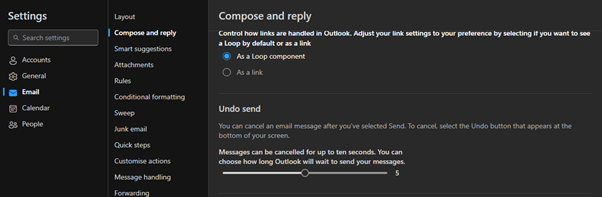
- Go to Settings
- Click on the settings icon, which looks like a gear, in the top right corner of your screen.
- In the Settings menu, find the “Email” section.
- Look for a subsection called “Compose and Reply.”
- Find the Undo Send Section
- In this section, find the “Undo Send” option.
- You can set how long you want to be able to cancel your sent emails (usually between 5 and 10 seconds).
- After choosing your time frame, click “Save” to keep your changes.
Tips for Using “Undo Send” Well
- Act Fast: The “Undo Send” feature only works for a short time, so if you see a mistake, click “Undo” right away.
- Check Before Sending: Even though “Undo Send” is helpful, it’s still smart to double-check your emails before hitting “Send.”
- Choose a Longer Delay: If you often need more time to review your emails, think about setting a longer cancellation period (if your email service allows it) to give yourself more time to catch mistakes.
By using the “Undo Send” feature, you can avoid those embarrassing moments when you send an email to the wrong person or hit “Send” too soon. It’s a simple but powerful tool to help you stay in control of your emails!
Don’t Let Email Issues Slow You Down: Get Expert IT Support from Nxt Gen IT
Struggling with email glitches or worried about security? Our team at Nxt Gen IT is here to help. From setting up advanced email features like Undo Send to safeguarding your communications, we ensure your business runs smoothly and securely.
Contact us today for a free consultation and discover how our IT support can keep your emails, and your business, on track!

Ben helps growing businesses turn technology into a driver of performance instead of a barrier. At Nxt Gen IT he works with SME leaders, recruiters, and fast-scaling teams to design solutions that improve reliability, strengthen security, and unlock growth.
With a background in email deliverability and cloud systems, Ben specialises in making sure businesses communicate effectively, keep data safe, and get the most from Microsoft 365. His experience spans solution design, managed IT services, and virtual CIO support, always with a focus on practical outcomes that reduce headaches for business owners.
Ben has supported organisations across the UK, from recruitment agencies struggling with inbox placement to SaaS firms scaling fast, and SMEs needing a trusted partner for their IT. He believes tech is never the end goal: growth is. His role is to make sure technology never gets in the way of it.