

Securing your Microsoft 365 account with Multi-Factor Authentication (MFA) is one of the simplest and most effective ways to protect your business data. As part of the setup, you’ll install the Microsoft Authenticator app on your mobile phone. This sometimes raises a few concerns, especially around privacy and data usage, so let’s clear those up before you get started.
Adding Microsoft Authenticator to your personal device does not give your company access to your photos, messages, browsing history, contacts, or any other private information. The app is designed purely to confirm that it’s really you signing in, nothing more. It also uses barely any mobile data or signal. The authentication prompts are extremely lightweight and won’t impact your phone plan or performance.
Once MFA is enabled, remember to keep your mobile device with you whenever you’re logging in to a work laptop, desktop, or application. You may occasionally be asked to approve a sign-in using Microsoft Authenticator, and having your phone to hand ensures you can access your systems without delay.
With that in mind, let’s walk through the setup process step by step.
Step 1: Sign in to your Microsoft 365 account
- Navigate to your usual Microsoft 365 sign-in page (e.g., portal.office.com).
- Enter your work/school email address and password as normal.
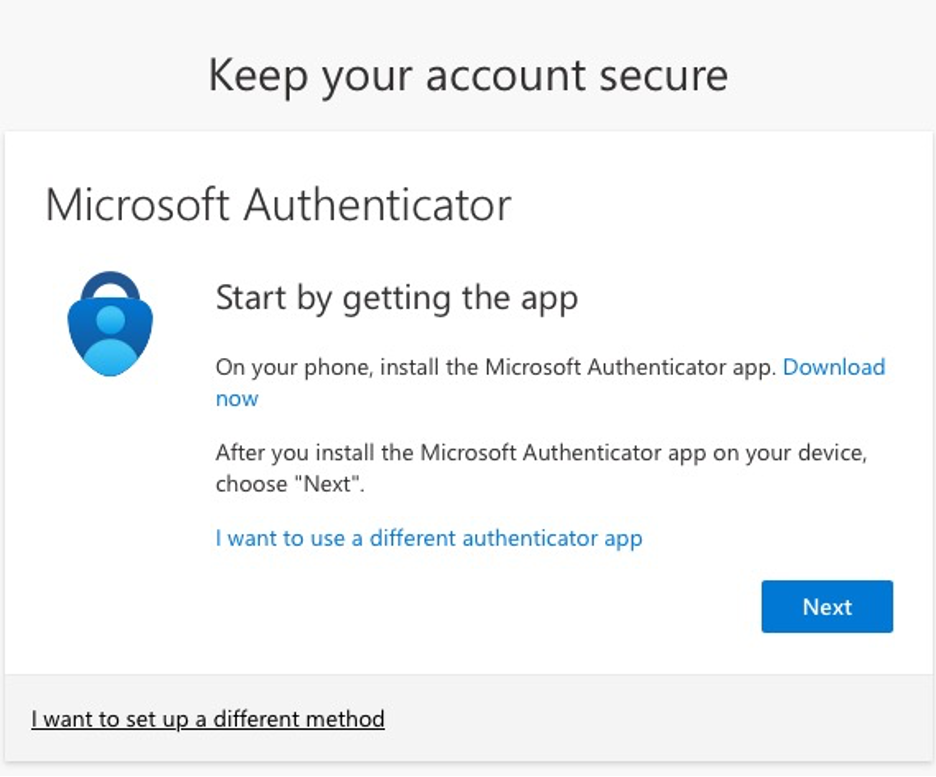
- If MFA has been enabled by your organisation, after entering your password you’ll see a prompt saying “More information required” or “Keep your account secure / Your organisation requires you to set up …”
- Click Next to continue.

Step 2: Choose your authentication method
- The default recommended method is using the Microsoft Authenticator app on your smartphone.
- If you don’t want to use the app (or can’t), you may click “I want to set up a different method” (for example: text message or phone call).
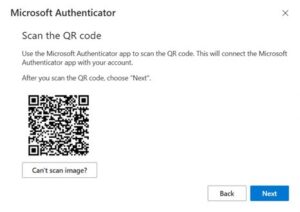
- If using the Authenticator app: On your mobile device, install /open the app, then on the computer click Next. The screen should display a QR code for you to scan.
Step 3: Install / Open the Microsoft Authenticator app
- On your phone (iOS or Android) go to the App Store / Google Play and download Microsoft Authenticator.
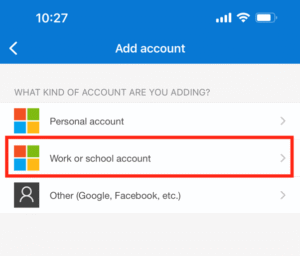
- Open the app and choose to Add account → Work or school account (or “Other” if instructed).
- Use the app’s camera-scan feature to scan the QR code displayed on your computer screen.
Step 4: Approve the sign-in / Number-matching
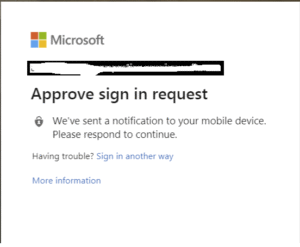
- Once the account is added to the Authenticator app, you’ll typically receive a notification or be asked to enter a number code that appears on your computer screen into the app.
- On your computer click Next once you’ve responded on your phone.
- You’ll see a confirmation that setup was successful.
Step 5: Add a backup method
- Once MFA is configured via the app, it’s good practice to add a second method (for example: phone call, SMS, alternate device) in case you lose access to your primary device.
- Follow prompts to add, verify, and save your backup method.
Tips & User-Friendly Notes
- The Authenticator app is faster and more secure than SMS or phone call methods.
- Keep your phone with you or ensure your backup method is valid – losing both may lock you out.
- If you change your phone or uninstall the app, don’t delete your account from the app until you’ve configured a new method.
- Make sure your phone is connected to the Internet (WiFi or mobile data) when doing the setup.
- After setup, you will not be prompted for MFA every time – typically only when on a new device, new browser, or the system deems it necessary.
Still need help?
Contact Nxt Gen IT support on 0333 231 1000

Ben helps growing businesses turn technology into a driver of performance instead of a barrier. At Nxt Gen IT he works with SME leaders, recruiters, and fast-scaling teams to design solutions that improve reliability, strengthen security, and unlock growth.
With a background in email deliverability and cloud systems, Ben specialises in making sure businesses communicate effectively, keep data safe, and get the most from Microsoft 365. His experience spans solution design, managed IT services, and virtual CIO support, always with a focus on practical outcomes that reduce headaches for business owners.
Ben has supported organisations across the UK, from recruitment agencies struggling with inbox placement to SaaS firms scaling fast, and SMEs needing a trusted partner for their IT. He believes tech is never the end goal: growth is. His role is to make sure technology never gets in the way of it.